Ever wondered how to create a Gantt Chart on your Mac using Numbers? Well, you’re in luck! With just a few simple steps, you can easily create a professional-looking Gantt Chart to track your projects and tasks.
Numbers is a powerful spreadsheet application that comes pre-installed on Mac computers. While it may not have all the bells and whistles of dedicated project management software, it can still be used to create basic Gantt Charts that are perfect for personal or small business use.
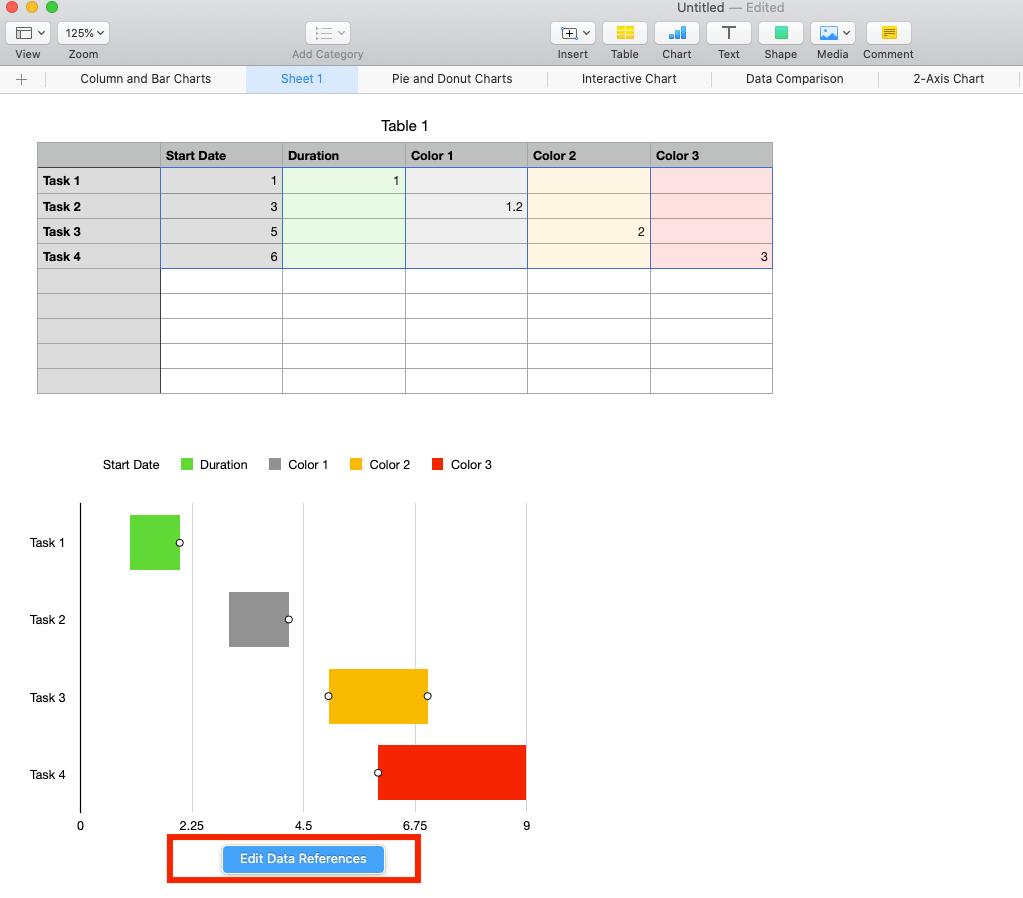
Gantt Chart Mac Numbers
Creating a Gantt Chart in Numbers
To create a Gantt Chart in Numbers, start by opening a new spreadsheet and entering your project data. You’ll want to include columns for tasks, start dates, end dates, and durations. Once your data is entered, select it and click on the Charts icon in the toolbar.
From the Chart Type menu, choose the Stacked Bar chart option. This will create a basic bar chart that you can customize to turn into a Gantt Chart. You can adjust the colors, labels, and axis titles to make your Gantt Chart more visually appealing and easier to read.
Once you’ve customized your chart to your liking, you can add additional features like milestones, dependencies, and progress indicators to make it even more robust. With a little creativity and some patience, you can create a professional Gantt Chart right in Numbers on your Mac.
In conclusion, creating a Gantt Chart in Numbers on your Mac is easier than you might think. With a few simple steps, you can have a professional-looking chart to help you track your projects and tasks more effectively. Give it a try and see the difference it can make in your project management efforts!








